
AI Colorization: Adding Color to Black & White Photos in 2026
That faded black and white photo of your grandmother on her wedding day — imagine seeing it in full, vivid color. For decades, the only way to colorize old photos was through painstaking manual work in Photoshop, layer by layer, pixel by pixel. Today, AI has changed everything.
AI colorization uses deep learning models trained on millions of color photographs to predict what hues should appear in your monochrome images. The technology analyzes faces, clothing, backgrounds, and lighting conditions to make intelligent color choices — and the results can be surprisingly accurate. In this guide, we'll explore how AI colorization works, test the best tools available in 2026, and show you how to get the most realistic results from your old family photos.
How AI Colorization Actually Works
Before we dive into tools, it helps to understand what's happening under the hood. AI colorization isn't just slapping a sepia filter on your image — it's a sophisticated process that involves:
- Scene analysis — The AI identifies what's in your photo: faces, sky, grass, buildings, clothing
- Pattern matching — Based on training data from millions of real color photos, the model predicts likely colors
- Context awareness — A clear sky gets blue, skin tones match lighting conditions, and shadows affect color saturation
- Seamless blending — The final output smooths color transitions so nothing looks patchy or artificial
The best AI colorizers also enhance clarity while adding color. Old scanned photos often have dust, scratches, and fading — modern tools address these issues simultaneously, giving you a result that looks cleaner than the original.
"I spent $150 getting one photo professionally colorized years ago. Now these AI tools do it in seconds for free — and honestly the results are comparable."— User comment on r/OldSchoolCool
What to Expect (And What Not To)
Let's set realistic expectations. AI colorization is impressive, but it's not perfect:
What AI does well:
- ✅ Skin tones in good lighting
- ✅ Natural elements (sky, grass, trees, water)
- ✅ Common clothing colors
- ✅ Overall scene atmosphere
Where AI struggles:
- ❌ Unusual or rare colors (that red car might become blue)
- ❌ Historical accuracy (the AI doesn't know what color your grandmother's dress actually was)
- ❌ Extremely damaged or low-quality source images
- ❌ Mixed indoor/outdoor lighting
The key insight: AI colorization gives you a plausible interpretation, not a factual one. For family memories, that's often enough — but if historical accuracy matters, you may need manual adjustments.
Best AI Colorization Tools Compared (2026)
We tested a dozen colorization tools on real family photos — faded prints from the 1940s through 1980s. Here's what actually works.
1. Palette.fm — Best Overall Quality
Palette.fm consistently produced the most natural-looking results in our testing. What sets it apart is the ability to refine colorization with text prompts — you can guide the AI with phrases like "warmer skin tones" or "vintage 1960s look."
- ✅ Exceptional skin tone accuracy
- ✅ Text-guided refinement options
- ✅ Clean, modern interface
- ❌ HD downloads require credits
- ❌ No batch processing on free tier
Best for: Portrait photos where face quality matters most.
2. ImageColorizer — Best for Damaged Photos
If your source photo has scratches, tears, or significant fading, ImageColorizer handles restoration alongside colorization. It's particularly good at cleaning up scanned prints before adding color.
- ✅ Built-in restoration features
- ✅ Handles damaged originals well
- ✅ Batch processing available
- ❌ Results can look slightly oversaturated
- ❌ Processing can be slow on detailed images
Best for: Old, damaged family photos that need repair before colorization.
3. Canva Colorify — Best for Beginners
If you're already using Canva for design work, the built-in Colorify tool offers solid results without leaving the platform. It's not the most accurate option, but it's accessible and integrates with Canva's other editing features.
- ✅ No separate account needed if you use Canva
- ✅ Easy integration with other edits
- ✅ Good for quick social media posts
- ❌ Less control over output
- ❌ Color accuracy varies widely
Best for: Quick colorizations when you're already working in Canva.
4. DeepAI Colorizer — Best Free Option
DeepAI offers completely free colorization with no account required. The results are basic — colors can look flat, especially on faces — but for a zero-cost solution, it's surprisingly capable.
- ✅ Completely free, no sign-up
- ✅ Fast processing
- ✅ No watermarks
- ❌ Basic color accuracy
- ❌ No enhancement features
Best for: Testing colorization on many photos before committing to a paid tool.
The Complete Photo Restoration Workflow
Here's the thing — colorization is often just one step in a larger restoration process. For the best results, consider this workflow:
- Scan at high resolution — 600 DPI minimum for prints, use a flatbed scanner
- Repair damage — Remove scratches, tears, and dust spots
- Enhance clarity — Sharpen blurry areas, adjust contrast
- Colorize — Apply AI colorization
- Fine-tune — Adjust saturation, correct any obvious color errors
This is where having an all-in-one tool becomes valuable. Instead of jumping between different apps for each step, you want something that handles the entire workflow.
AIPGEN: AI Photo Restoration Made Simple
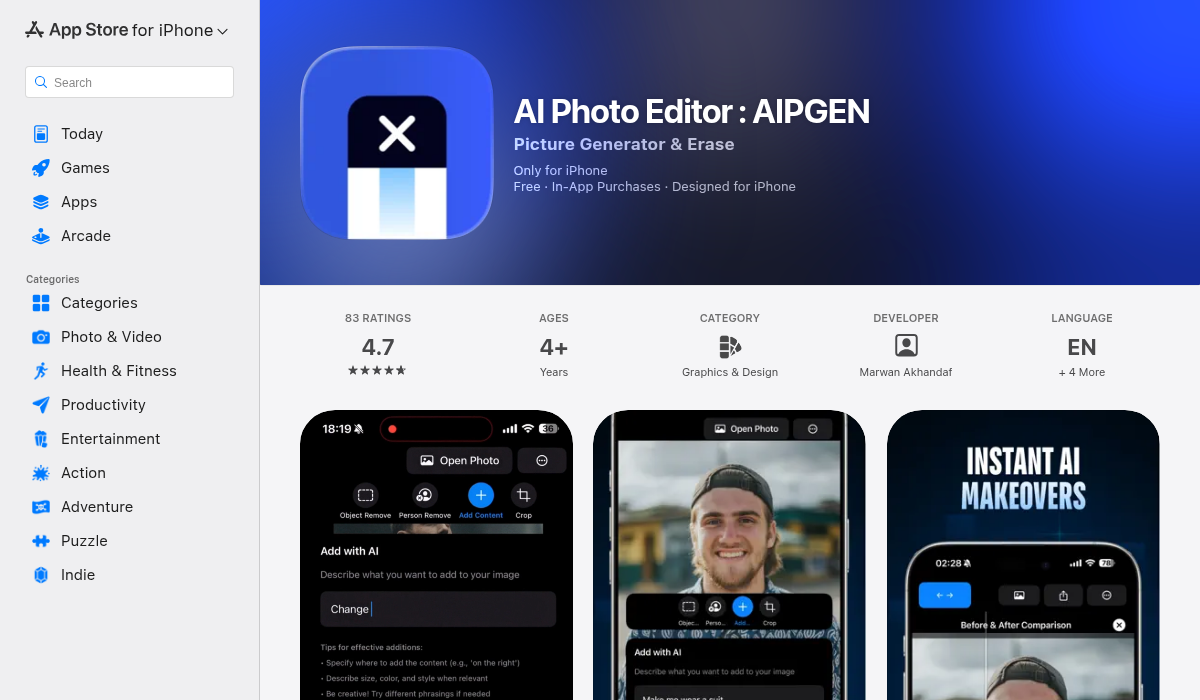
AIPGEN approaches the problem differently. Rather than focusing on colorization alone, it's built as a complete photo restoration suite. The AI restoration feature breathes new life into old, damaged photos — automatically repairing scratches, fixing discoloration, sharpening blurry details, and enhancing overall clarity.
- ✅ AI photo restoration repairs damage automatically
- ✅ Object and person removal for cleaning up photos
- ✅ 60+ AI templates for quick edits
- ✅ Before/after slider to compare results
- ✅ Works on iOS and Android
What makes AIPGEN stand out is the combination of restoration features. You can remove unwanted elements (that random person photobombing your grandfather's portrait), repair damage, and enhance clarity — all in one app. For vintage photos that need more than just colorization, this integrated approach saves significant time.
The before/after slider is particularly useful when working with old photos. You can see exactly what the AI has improved, making it easy to decide if you're happy with the restoration before saving.
Remini — The AI Enhancement Specialist
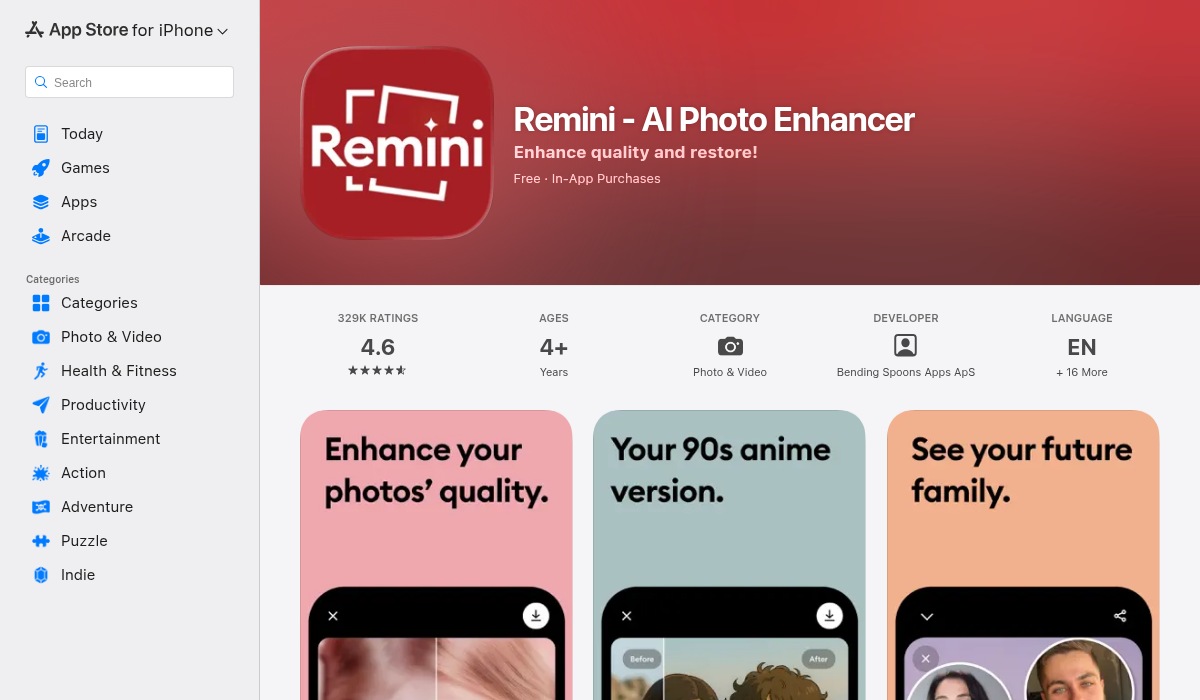
Remini has earned a reputation for its face enhancement capabilities. If your old photo has blurry or low-resolution faces, Remini can sharpen them dramatically. It also offers colorization, though face enhancement remains its primary strength.
- ✅ Excellent face enhancement and upscaling
- ✅ Colorization included
- ✅ Video enhancement available
- ❌ Subscription required for full features
- ❌ Can over-smooth faces (loses natural texture)
Best for: Blurry photos where faces need significant enhancement.
Pro Tips for Better Colorization Results
After testing dozens of photos across multiple tools, here's what we learned:
- Start with the highest quality source possible — AI can only work with what you give it. A 600 DPI scan will always produce better results than a phone photo of a print.
- Clean up damage before colorizing — Scratches and tears can confuse the AI's color predictions. Use a restoration tool first, then colorize the repaired image.
- Try multiple tools on the same photo — Different AI models make different color choices. Palette.fm might nail the skin tones while ImageColorizer does better with the background.
- Adjust saturation after colorizing — Many tools over-saturate colors to make the result look more "impressive." Pulling saturation back 10-15% often looks more natural.
- Accept some manual tweaking — If that dress was definitely pink and the AI made it blue, spend two minutes in any photo editor to correct it. AI gets you 90% there; you finish the job.
When to Use Web Tools vs. Mobile Apps
Both have their place:
Use web tools when:
- Working with high-resolution scans on your computer
- Processing multiple photos in batch
- You need fine-grained control over output settings
Use mobile apps when:
- You want quick results on the go
- You're sharing directly to social media
- The photo is already on your phone
- You need other editing features alongside colorization
For comprehensive restoration work — the kind where you're digitizing boxes of old family photos — a mobile app like AIPGEN paired with a dedicated web colorizer like Palette.fm gives you the best of both worlds.
The Bottom Line
AI colorization has reached a point where anyone can transform black and white memories into color photos in seconds. The technology isn't perfect — it makes educated guesses rather than recovering "true" colors — but for preserving family history, the results are often good enough to feel magical.
Our recommendation: Start with Palette.fm for the best standalone colorization quality. If your photos need repair work first, use AIPGEN's restoration features to clean them up before colorizing. And for completely free results without any sign-up, DeepAI gets the job done for basic needs.
The best part? Most of these tools offer free trials or free tiers, so you can test them on your actual photos before committing. That box of your grandparents' wedding photos isn't getting any younger — why not see what they'd look like in color?
If you're looking for a complete photo restoration solution that handles damage repair, object removal, and enhancement in one app, AIPGEN is worth trying — it's available on both iOS and Android.