
AI Photo Upscaling: How to Enhance Low Quality Images
That perfect photo from your vacation — pixelated beyond recognition. Your grandmother's only picture — tiny and blurry. Screenshots from years ago that you wish you could enlarge. We've all been there. But in 2026, AI has completely transformed what's possible with low-quality images.
Modern AI upscaling doesn't just make images bigger — it genuinely enhances them. These tools analyze your photo, understand what's in it, and intelligently add detail that wasn't visible before. The results can be stunning, turning throwaway images into photos you'd actually want to print.
What AI Photo Upscaling Actually Does
Traditional upscaling simply stretches pixels, creating that familiar blurry, blocky mess. AI upscaling is fundamentally different. It uses neural networks trained on millions of images to predict what details should exist based on the context of your photo.
When you upscale a face, for example, the AI doesn't just make the existing pixels bigger. It recognizes that it's looking at a face, understands the typical structure of facial features, and fills in plausible detail — sharper eyes, more defined skin texture, clearer edges around the nose and mouth.
"I've been testing a few AI image upscalers on some old photos and digital artwork. The difference compared to traditional upscaling is night and day — it's like the AI actually adds information that wasn't there."— Reddit user in r/AskTechnology
Best Ways to Upscale and Enhance Low-Quality Images
Desktop Powerhouses (For Serious Editing)
Topaz Photo AI remains the gold standard for desktop users who need maximum quality. It's not cheap (~$199), but for photographers dealing with low-light shots, old scans, or images that need significant enhancement, nothing matches its output. The AI handles upscaling, denoising, and sharpening in one pass.
Aiarty Image Enhancer has emerged as a strong alternative in 2026. Users report impressive results with old photos and digital artwork — it seems to handle the "artificial intelligence" part of enhancement particularly well, making images look naturally detailed rather than obviously AI-processed.
- ✅ Best possible quality
- ✅ Batch processing for multiple images
- ✅ Fine-tuned control over settings
- ❌ Expensive
- ❌ Requires powerful computer
- ❌ Learning curve
Best for: Photographers, archivists, anyone processing lots of images professionally
Online Tools (Quick and Easy)
Fotor wins the convenience award: upload, click, done. It's fast, handles most images well, and doesn't require installing anything. The free tier has limitations, but for occasional use it's perfect.
Bigjpg specializes in anime and illustration upscaling, making it a favorite among digital artists. It handles line art and cel-shaded images better than tools trained primarily on photographs.
- ✅ No installation required
- ✅ Usually free for basic use
- ✅ Works on any device
- ❌ Upload limits on free tiers
- ❌ Privacy concerns (your images go to a server)
- ❌ Quality varies by tool
Best for: Occasional upscaling, when you need a quick fix
Mobile Apps (Edit Anywhere)
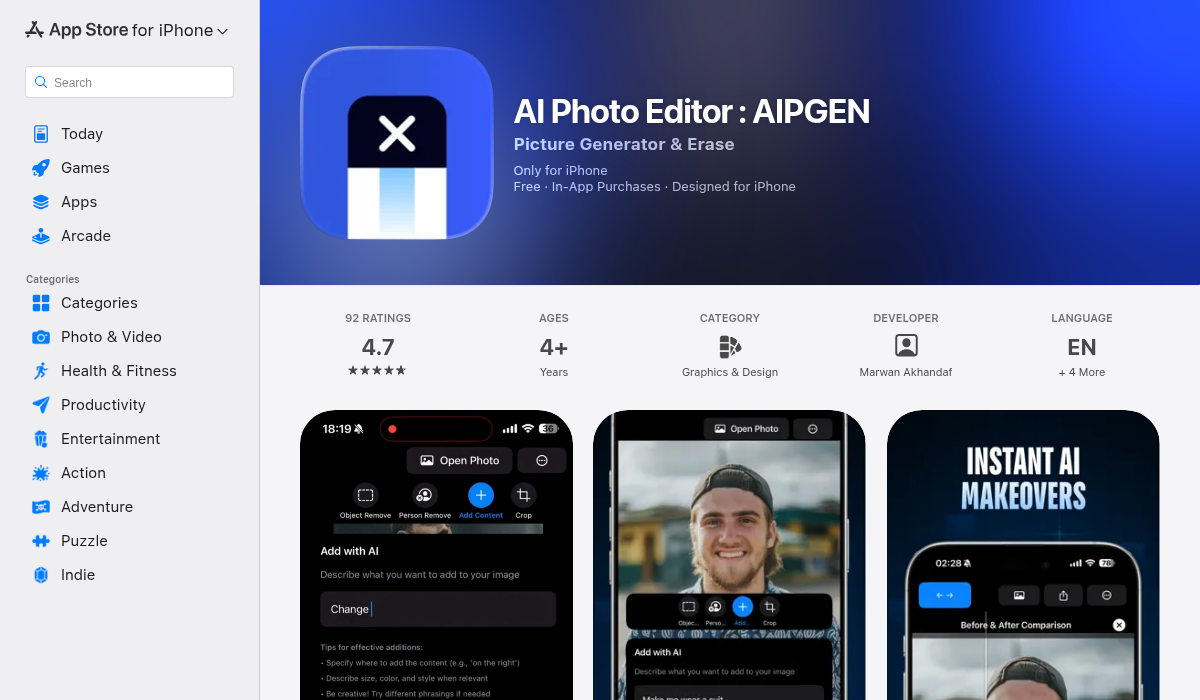
For most people, the ideal solution lives on their phone. You take photos with your phone, store them on your phone, and share them from your phone — why should editing be any different?
AIPGEN brings professional-grade AI photo enhancement to iOS and Android. While it's known for features like object removal and photo restoration, its enhancement capabilities turn low-quality images into something you'd actually want to share.
What sets AIPGEN apart is its all-in-one approach. You can upscale a low-quality image, then remove an unwanted object from the background, then apply one of 60+ AI templates to style it — all in the same app. For old photos, the restoration feature is particularly impressive, breathing new life into faded, damaged images.
- ✅ AI enhancement on your phone
- ✅ Works with photo restoration
- ✅ 60+ AI editing templates
- ✅ Before/after comparison slider
- ✅ Works on iOS and Android
- ❌ Premium features require subscription
Best for: Phone photographers who want one app for all their AI editing needs
When Does AI Upscaling Work Best?
AI upscaling isn't magic — it works better in some situations than others. Understanding these limitations helps set realistic expectations.
Great Results Expected
- Faces and portraits — AI is incredibly good at understanding facial structure and adding convincing detail
- Nature and landscapes — Trees, mountains, water — these have predictable textures that AI handles well
- Old photos with age damage — Combining upscaling with restoration can work wonders
- Screenshots and digital images — Clean edges upscale beautifully
Challenging Situations
- Heavily compressed images — JPEG artifacts can confuse the AI, leading to weird textures
- Text in images — AI often mangles text during upscaling; results can be unreadable
- Very small source images — There's a limit to how much the AI can invent; under 200x200 pixels is pushing it
- Complex patterns — Plaids, fine stripes, and detailed patterns can become muddled
Step-by-Step: Enhancing a Low-Quality Image
Let's walk through the process of taking a low-quality image and making it usable.
- Assess your image — Look at the original. Is it blurry, noisy, small, or all three? This determines your approach.
- Start with cleanup if needed — If the image has major issues (unwanted objects, damage), address those first. AIPGEN's object removal and restoration tools work well here.
- Apply enhancement/upscaling — Run the AI enhancement. For most images, 2x or 4x upscaling is sufficient. Going higher often introduces artifacts.
- Review the results — Zoom in and check problem areas. Faces? Text? Patterns? If something looks off, you might need a different tool or settings.
- Fine-tune if necessary — Some tools let you adjust sharpness, noise reduction, and enhancement strength. A lighter touch often looks more natural.
Common Mistakes to Avoid
- Over-upscaling — Bigger isn't always better. Going from 500px to 8000px will look obviously AI-generated. Aim for the size you actually need.
- Ignoring compression — If your source is a heavily compressed JPEG, try denoising before upscaling for better results.
- Skipping the comparison — Always compare before and after. Sometimes the original (smaller) looks more natural than the upscaled version.
- Using the wrong tool — Photo tools for photos, illustration tools for illustrations. A tool trained on anime won't do your portrait any favors.
- Forgetting about context — A slightly blurry old family photo often has more emotional value than a crispy AI-enhanced version that doesn't quite look like the person anymore.
Special Case: Old Photo Restoration
Restoring old photos combines multiple AI capabilities: damage repair, colorization (if desired), denoising, and upscaling. The order matters:
- Repair scratches, tears, and stains
- Remove noise and age-related degradation
- Upscale to desired resolution
- Optionally add color to black-and-white images
AIPGEN's photo restoration feature handles this workflow particularly well for mobile users, combining repair and enhancement in an intuitive interface.
Free vs. Paid: Is Premium Worth It?
For occasional use, free tools work fine. Upload to Fotor, get a quick enhancement, done. But if you're regularly working with low-quality images, premium tools offer meaningful advantages:
- Better quality — Paid tools typically use more sophisticated AI models
- No watermarks — Free online tools often watermark output
- Batch processing — Enhance dozens of images at once
- Privacy — Local processing means your images stay on your device
- Higher resolution limits — Free tiers often cap output size
For mobile users, AIPGEN's credit-based system offers a middle ground: you're not paying a hefty subscription, just for what you actually use.
Pro Tips for Best Results
- Start with the highest quality source available — If you have the original file, use it instead of a screenshot or social media download.
- Consider your end use — Printing requires higher resolution than screen display. Don't over-process images you're just posting online.
- Use the comparison slider — Apps like AIPGEN include before/after sliders specifically because it's easy to over-enhance. Trust your eyes.
- Try multiple tools — Different AI models have different strengths. If one tool's output looks weird, another might nail it.
- Preserve the original — Always keep your unedited image. AI enhancement is still imperfect, and you might want to try again as technology improves.
The Bottom Line
AI photo upscaling in 2026 is genuinely impressive. Low-quality images that would have been unusable a few years ago can now be enhanced into something worth keeping and sharing.
For most people, a mobile solution like AIPGEN hits the sweet spot: professional-quality AI enhancement without the complexity of desktop software or the privacy concerns of online tools. The ability to combine upscaling with object removal, restoration, and creative templates makes it a one-stop shop for breathing new life into your photos.
Just remember: AI is a tool, not magic. The best results come from understanding what these tools do well, using them appropriately, and knowing when a photo is better left in its original imperfect state.