
AI Upscaling: Making Small Photos Print-Ready in 2026
That perfect photo from 2008 looks amazing on your phone screen — until you try to print it as a 16x20 poster and it turns into a pixelated nightmare.
This is the curse of low-resolution images. That vintage family photo, your old vacation pics, or even a screenshot you want to frame — they all fall apart when you push them beyond their pixel limits. But in 2026, AI upscaling has finally cracked the code.
This guide breaks down how AI upscaling actually works, which tools deliver print-ready quality, and how to get the best results from photos you thought were too small to enlarge.
Why Traditional Upscaling Fails
When you stretch a low-resolution image, your computer doesn't magically create new detail — it just makes the existing pixels bigger. The result? That distinctive blocky, blurry mess we've all seen.
Traditional upscaling algorithms try to smooth things out by interpolating (guessing) what goes between pixels. This gives you a slightly smoother blur, but it's still clearly a stretched image. You lose all the fine detail that makes photos look sharp and professional.
"I've been prepping images for printing — posters, art prints, photo books — and AI upscalers have completely changed the game. They bring back detail and clarity that I thought was gone forever."— A photographer sharing their experience in r/Printing
How AI Upscaling Actually Works
AI upscaling is fundamentally different. Instead of just stretching pixels, AI models are trained on millions of high-resolution images. They learn patterns: what skin texture looks like, how fabric folds, what tree bark detail should be.
When you feed a low-resolution image into an AI upscaler, it doesn't just interpolate — it predicts what the missing detail should be based on what it learned. It's essentially "hallucinating" plausible detail that makes the image look genuinely high-resolution.
The results can be stunning. An old 640x480 photo can become a crisp 4K image that actually holds up to scrutiny. But the quality varies wildly depending on the tool and the source image.
What Makes a Photo "Print-Ready"?
Before diving into tools, let's establish what you actually need for printing:
- Resolution matters more than file size — You need enough pixels to fill your print at the right DPI
- 300 DPI is the standard — For most prints, you want 300 dots per inch at final size
- Simple math — A 4x6 print at 300 DPI needs 1200x1800 pixels minimum
- Larger prints — A 16x20 poster at 300 DPI requires 4800x6000 pixels
Here's a quick reference:
- 4x6 print: 1200 x 1800 pixels
- 8x10 print: 2400 x 3000 pixels
- 11x14 print: 3300 x 4200 pixels
- 16x20 poster: 4800 x 6000 pixels
- 24x36 poster: 7200 x 10800 pixels
If your source image is smaller than these numbers, you need upscaling. And for anything beyond simple family prints, AI upscaling is the only option that doesn't look terrible.
Best AI Tools for Print-Ready Upscaling
1. Topaz Gigapixel AI
The industry standard for professional upscaling. Topaz has been the go-to for photographers who need maximum detail recovery. It works as a standalone app or Photoshop plugin, letting you upscale images up to 600%.
- ✅ Best-in-class detail recovery
- ✅ Multiple AI models for different photo types
- ✅ Batch processing for large jobs
- ❌ Expensive ($199 one-time or subscription)
- ❌ Requires powerful computer
- ❌ Desktop only — no mobile option
Best for: Professional photographers and serious hobbyists who need the absolute best quality and don't mind the price.
2. Remini
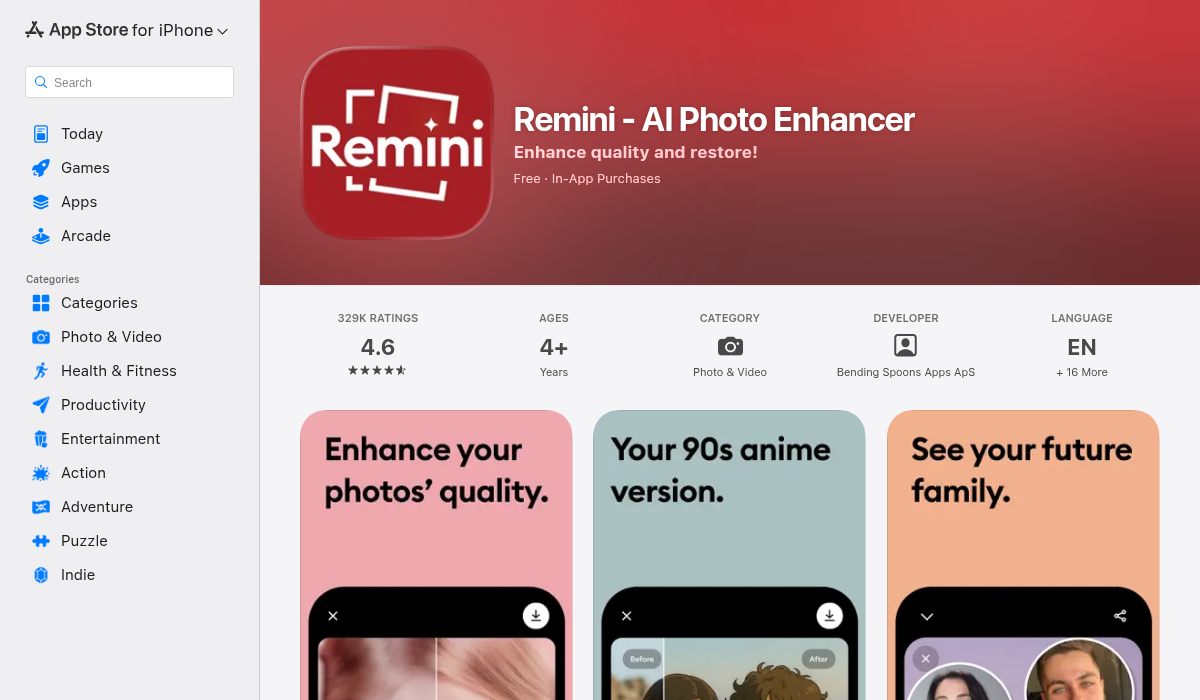
Remini became famous for face enhancement — it can make blurry faces look sharp again. The upscaling quality is impressive for portraits, though it struggles with other subjects.
- ✅ Excellent for face enhancement
- ✅ Mobile-friendly
- ✅ Quick processing
- ❌ Focused on faces — less effective for landscapes/objects
- ❌ Can over-smooth skin to look artificial
- ❌ Free version heavily limited
Best for: Old portrait photos where faces are the main subject.
3. AIPGEN – AI Photo Editor
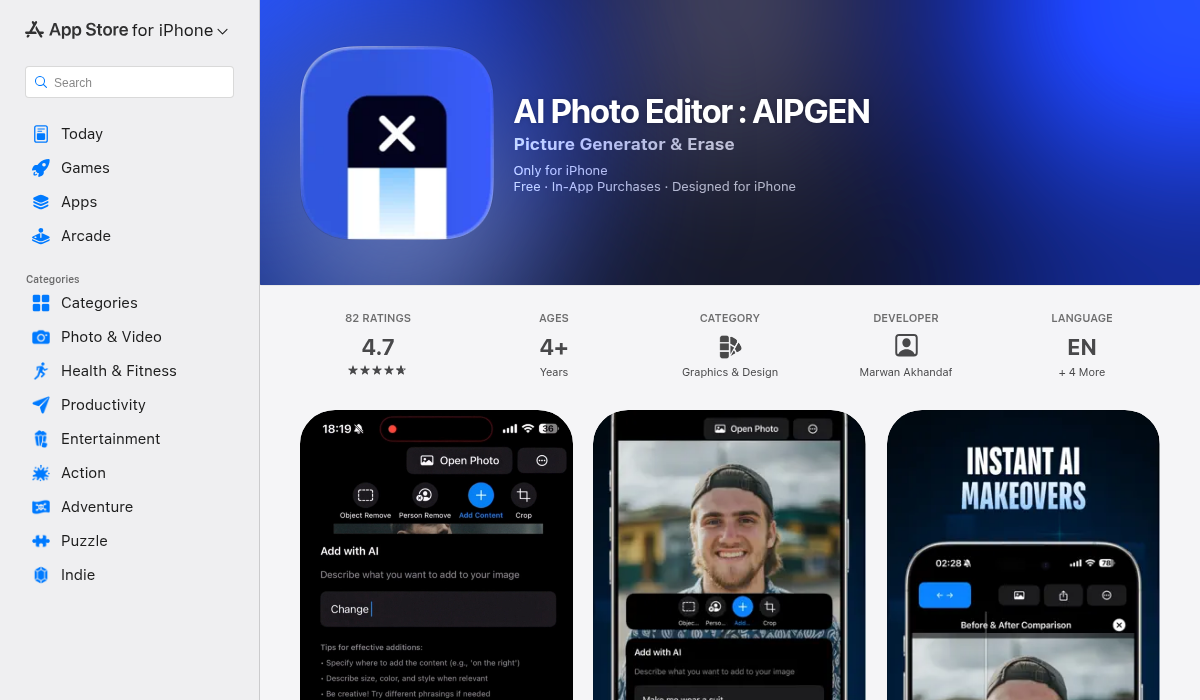
AIPGEN approaches the problem differently. Rather than pure upscaling, it focuses on AI photo restoration and enhancement — fixing the image quality before you scale it up. This is often the missing step in getting great prints.
- ✅ AI restoration fixes scratches, fading, and damage
- ✅ Sharpens blurry details before upscaling
- ✅ Object/person removal cleans up distractions
- ✅ 60+ AI templates for quick enhancement
- ✅ Works on iOS and Android
- ✅ Interactive before/after slider
Best for: Old or damaged photos that need restoration before printing. The AI fixes quality issues that upscaling alone can't solve. Download AIPGEN
4. Upscayl (Free/Open Source)
For budget-conscious users, Upscayl delivers surprisingly good results at zero cost. It's open-source desktop software that runs locally on your machine.
- ✅ Completely free
- ✅ No watermarks or limits
- ✅ Multiple AI models to choose from
- ✅ Runs locally — no uploads
- ❌ Desktop only (Windows/Mac/Linux)
- ❌ Quality not quite as good as paid options
- ❌ Slower on older hardware
Best for: Anyone who wants decent upscaling without spending money.
The Optimal Workflow for Print-Ready Photos
Here's the workflow professional photographers use:
- Start with the best source you have — If you have the original file, use it. Don't upscale a compressed JPEG if the RAW exists somewhere.
- Clean and restore first — Before upscaling, fix scratches, remove damage, and restore faded colors. This is where AIPGEN excels.
- Upscale to your target size — Only upscale what you need. Don't make a 100MP file for a 4x6 print.
- Sharpen after upscaling — AI upscaling can sometimes create slight softness. A light sharpen at the end helps.
- Export at the right format — TIFF or high-quality JPEG (90%+) for printing. Don't re-compress multiple times.
Pro Tips for Best Upscaling Results
- Don't over-upscale — Going from 500 pixels to 5000 pixels asks a lot of the AI. You'll get better results with multiple smaller upscales (2x, then 2x again) rather than one massive jump.
- Match the AI model to the content — Face-focused AI works great on portraits but can ruin landscapes. Topaz and Upscayl let you choose models for different content types.
- Fix problems before scaling — Noise, scratches, and compression artifacts get worse when upscaled. Use restoration tools like AIPGEN to clean the image first.
- Consider viewing distance — Large posters viewed from across the room can tolerate lower DPI (150-200 is often fine). You don't always need 300 DPI for big prints.
- Test print small first — Before ordering a 24x36 canvas, print a small section at full resolution to check quality.
When AI Upscaling Won't Save You
AI upscaling is powerful, but it has limits. Be realistic about these scenarios:
- Extremely low resolution — A 100x100 pixel thumbnail can't become a quality poster. There's not enough information for the AI to work with.
- Heavy compression artifacts — Those blocky JPEG artifacts get amplified. Restore the image first.
- Motion blur — AI can't recover detail that was never captured. Shake and motion blur are mostly unfixable.
- Out-of-focus shots — Similar to motion blur — if the camera didn't focus on the subject, the detail doesn't exist.
For these cases, AI can make images look slightly better, but don't expect miracles. Sometimes the best solution is to accept a smaller print size.
Free vs Paid: Is Premium Worth It?
For occasional use, free tools like Upscayl deliver solid results. The quality difference between free and paid tools is noticeable but not always dramatic.
Paid tools make sense if:
- You're doing this professionally
- You need batch processing
- Maximum quality matters (gallery prints, client work)
- You want mobile convenience (Remini, AIPGEN)
For most people printing family photos or personal art, a combination approach works well: free upscaling tools plus a mobile enhancer like AIPGEN for quick fixes.
The Bottom Line
AI upscaling has genuinely transformed what's possible with low-resolution images. Photos that would have been pixelated disasters five years ago can now become crisp, print-ready images.
The key is choosing the right tool for your needs and understanding that upscaling works best when you start with the cleanest possible source. Restore and enhance before you scale.
For professional work, Topaz Gigapixel AI remains the gold standard. For mobile convenience and photo restoration, AIPGEN handles both enhancement and fixes in one app. And for zero-budget upscaling, Upscayl is surprisingly capable.
Your old photos don't have to stay small. Give them the resolution they deserve.