
How to Create AI Portraits That Look Professional
Want AI-generated portraits that actually look like professional headshots — not uncanny valley nightmares? You're not alone. Whether you need a polished LinkedIn photo, dating app pics that don't scream "AI," or creative portraits for social media, getting that professional look from AI takes more than just uploading a selfie and hoping for the best.
The AI portrait space has exploded in 2026, with dozens of apps promising studio-quality results. But here's the truth: most produce images that look obviously artificial — plastic skin, dead eyes, that weird AI "glow" that screams fake. After testing over 15 AI portrait apps, we've figured out what actually works — and more importantly, what doesn't.
Why Most AI Portraits Look Fake (And What to Do About It)
The biggest mistake people make with AI portraits? Expecting magic from bad source photos. Every AI portrait tool is only as good as what you feed it. Professional photographers have known this for decades — garbage in, garbage out.
Common problems we see constantly:
- Harsh shadows — Overhead lighting creates unflattering shadows that AI often exaggerates
- Low resolution — AI can't invent detail that isn't there
- Cluttered backgrounds — Distracting elements confuse AI algorithms
- Inconsistent lighting — Multiple light sources create unnatural results
"I spent $30 on one of those AI headshot services and every single photo looked like a video game character. Completely unusable for LinkedIn."— Reddit user in r/LinkedInLunatics
The good news? With the right approach and tools, you can create AI portraits that genuinely pass as professional photography. Let's break down exactly how.
What Makes a Portrait Look "Professional"
Before diving into apps and techniques, let's understand what separates amateur snapshots from professional headshots:
- Clean backgrounds — Professional portraits use solid colors or subtle gradients, never busy environments
- Soft, directional lighting — The classic "Rembrandt lighting" with soft shadows that add depth without harsh lines
- Sharp focus on eyes — Eyes must be crystal clear; this is non-negotiable
- Natural skin texture — Professional retouching enhances, not erases, skin detail
- Appropriate cropping — Headshots typically frame from mid-chest up, with the face occupying 60-70% of the frame
The best AI portrait tools in 2026 understand these principles. The worst ones ignore them entirely, giving you plastic-looking skin and backgrounds that scream "stock photo."
Best AI Portrait Apps Compared
We tested the most popular options to find what actually delivers professional results. Here's our honest assessment.
1. Remini

Remini made waves with its AI photo enhancement technology, particularly for upscaling old photos. For portraits specifically, it excels at sharpening faces and enhancing details. However, it's primarily an enhancement tool rather than a creative portrait studio.
- ✅ Excellent at sharpening blurry photos
- ✅ Good facial detail enhancement
- ✅ Quick processing
- ❌ Limited creative options
- ❌ Can over-smooth skin unnaturally
- ❌ No background editing or composition tools
Remini works well if you have a decent photo that just needs enhancement. But if you're starting with a mediocre selfie and want professional-level results, you'll need more comprehensive tools.
2. Lensa
Lensa gained massive popularity with its "Magic Avatars" feature, creating stylized AI portraits. While fun for social media, the results lean heavily artistic rather than professional. Great for creative expression, less ideal for LinkedIn headshots or professional use.
- ✅ Creative, artistic styles
- ✅ Good for social media content
- ❌ Results look obviously AI-generated
- ❌ Not suitable for professional contexts
- ❌ Requires uploading 10-20 photos for training
3. AIPGEN — AI Photo Editor
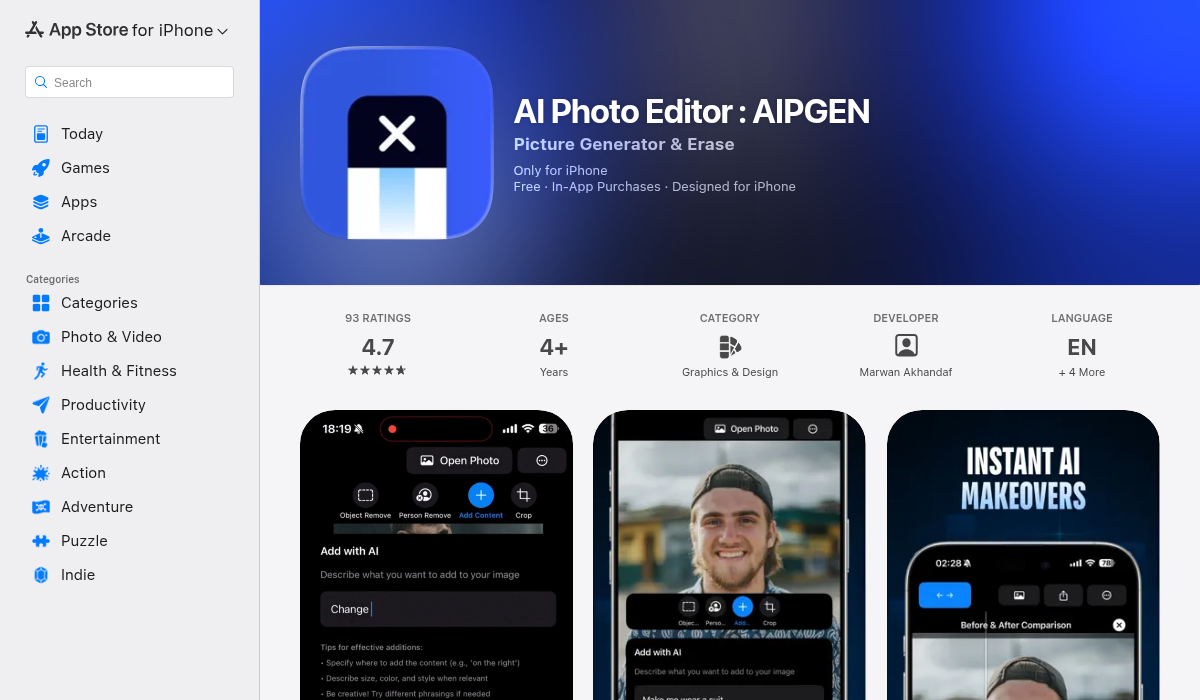
AIPGEN takes a different approach. Rather than just enhancing or stylizing, it provides a complete editing toolkit that lets you build professional-looking portraits step by step. This gives you control over the final result rather than hoping an AI gets it right.
What sets it apart for portrait work:
- ✅ AI object removal — Clean up backgrounds instantly by removing distracting elements
- ✅ 60+ AI templates — Pre-built editing presets for different styles, including professional headshot looks
- ✅ Photo restoration — Fix old or damaged photos before creating portraits
- ✅ Group photo creator — Unique feature to combine individual portraits into group shots
- ✅ Before/after slider — See exactly what changes you're making
- ✅ Free trial edit — Test before committing
The key advantage for professional portraits: you're in control. Instead of hoping an AI interprets your face correctly, you can methodically remove distractions, apply specific enhancements, and achieve exactly the look you want.
Step-by-Step: Creating Professional AI Portraits
Here's the workflow we've refined after months of testing:
Step 1: Start With the Best Source Photo You Can
Your source photo doesn't need to be perfect, but it should have:
- Good resolution (at least 1080px on the short edge)
- Your face clearly visible and in focus
- Relatively even lighting (no harsh shadows across your face)
- A neutral expression or the expression you want in the final portrait
Pro tip: Natural daylight from a window (not direct sunlight) creates the best starting conditions. Face the window, position yourself about 3 feet away, and you'll get soft, flattering light.
Step 2: Clean Up the Background
This is where most AI portrait apps fail — they either ignore backgrounds entirely or do weird things with them. Using a tool like AIPGEN's object removal, you can:
- Remove distracting objects behind you
- Eliminate other people in the background
- Clean up cluttered environments
A clean background is the single biggest differentiator between amateur and professional portraits. Don't skip this step.
Step 3: Apply Enhancement Templates
Rather than manually adjusting dozens of sliders, use AI templates designed for professional portrait looks. AIPGEN's 60+ templates include options specifically optimized for headshots — adjusting lighting, skin tones, and contrast in ways that enhance rather than distort.
Step 4: Fine-Tune Specific Elements
Professional retouchers never apply blanket enhancements. They work on specific areas:
- Eyes — Slight sharpening and brightening (but don't overdo it)
- Skin — Subtle smoothing while preserving texture
- Lighting — Add subtle directional light if needed
- Crop — Frame properly for headshot composition
Step 5: Compare Before and After
Always review your edits with a before/after comparison. The goal is enhancement, not transformation. If your portrait looks like a different person — or worse, looks AI-generated — you've gone too far.
Common Mistakes to Avoid
- Over-smoothing skin — The "plastic face" look is the #1 giveaway of AI-generated portraits. Keep some texture.
- Whitening eyes too much — Natural eyes aren't pure white. Slight yellowing or redness is normal and human.
- Ignoring hair details — AI often struggles with hair edges. Check these areas carefully.
- Using obvious AI filters — If it looks like a filter, it defeats the purpose.
- Inconsistent lighting — If your face lighting doesn't match the background, it screams "edited."
Pro Tips for Best Results
- Take multiple source photos — Give yourself options. Different angles and expressions let you choose the best starting point.
- Match your context — A LinkedIn headshot needs a different vibe than an Instagram portrait. Plan your editing approach accordingly.
- Less is more — Subtle enhancements beat dramatic transformations every time for professional use.
- Check on multiple screens — What looks good on your phone might look over-edited on a laptop. Verify on different devices.
- Get a second opinion — Show someone else. Fresh eyes catch problems you've become blind to.
The Bottom Line
Creating AI portraits that genuinely look professional isn't about finding a magic "one-click" solution — those rarely deliver usable results. It's about understanding what makes portraits look professional and using AI tools to achieve those specific qualities.
The most effective approach combines good source photos with comprehensive editing tools that give you control over the final result. Apps that let you clean backgrounds, apply thoughtful enhancements, and fine-tune specific elements will consistently outperform "AI headshot generators" that try to do everything automatically.
If you're looking for a versatile AI editing toolkit that handles portrait work well, AIPGEN offers a free trial edit so you can test the workflow before committing. The 60+ AI templates include options specifically designed for professional headshot looks, and the object removal tools make background cleanup straightforward.
Whatever tools you choose, remember: the goal isn't to look like someone else or like a video game character. It's to present your best, most professional self — enhanced by AI, not replaced by it.