
How to Create Group Photos from Individual Shots
That perfect family photo where everyone looks great, makes eye contact with the camera, and nobody's mid-blink? It rarely happens in one shot.
Whether you're dealing with uncooperative toddlers, friends who couldn't all be in the same place at once, or team members working remotely across different continents, getting everyone together for a group photo isn't always possible. But thanks to AI photo editing advances in 2026, you can now create convincing group photos from individual portraits — no Photoshop expertise required.
Here's how the technology works, which apps do it best, and practical tips for creating group photos that look natural rather than awkwardly composited.
Why This Used to Be Nearly Impossible
Traditional photo compositing — combining multiple images into one — has always been technically possible but practically nightmarish. Matching lighting angles, color temperatures, shadows, and perspectives across different photos required hours of skilled Photoshop work. Even professionals often produced results that looked obviously edited.
The challenges multiply with group photos:
- Lighting consistency — Different photos taken under different light sources clash
- Scale and perspective — People at different distances from cameras appear different sizes
- Edge blending — Harsh cutout edges are a dead giveaway
- Shadow matching — Shadows that don't align reveal the composite
- Color harmony — Skin tones and clothing colors that don't match destroy realism
Until recently, creating a believable group photo from individual shots meant hiring a professional retoucher — or accepting obviously fake results.
How AI Changes Everything
Modern AI photo editing tools approach compositing fundamentally differently. Instead of just cutting and pasting, they:
- Analyze context — AI understands the scene, lighting direction, and natural placement
- Generate backgrounds — Rather than awkwardly blending, AI can create new, cohesive backgrounds
- Harmonize lighting — Automatically adjusts exposure, color temperature, and shadows
- Refine edges — Smart selection handles hair, fabric, and complex boundaries
- Add realistic shadows — Creates appropriate shadows based on lighting analysis
The result? Group photos that would have taken hours now take minutes — with results that often look more natural than rushed real group shots.
Best Methods for Creating Group Photos
Method 1: AI Group Photo Creator Apps
The simplest approach uses apps specifically designed for combining individual portraits into group shots.
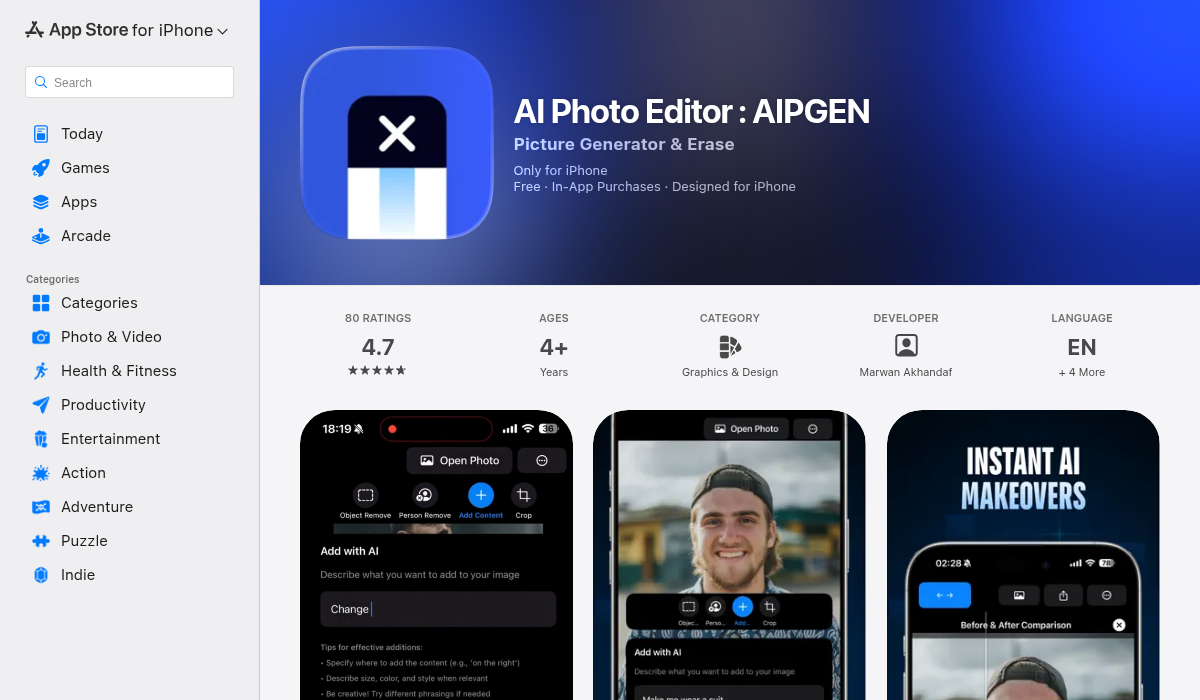
AIPGEN – AI Photo Editor includes a dedicated Group Photo Creator feature that handles the entire process automatically. You upload individual portraits, and the AI:
- Places subjects naturally within the frame
- Matches lighting and color grading across all images
- Generates a cohesive background
- Adds appropriate shadows and depth
The beauty of this approach is its simplicity. There's no manual selection, no layer management, no color correction sliders. You provide the portraits; AI handles the technical work.
Best for: Quick family or team photos from portrait shots taken separately.
Method 2: Manual Compositing with AI Assistance
For more control, you can use general AI photo editors that offer:
- AI Background Removal — Precisely cuts out subjects without manual selection
- AI Background Generation — Creates new backgrounds that match your vision
- Smart color matching — Harmonizes different photos automatically
This approach works well in AIPGEN and similar apps when you want to:
- Remove individuals from their original backgrounds
- Place them onto a new scene (generated or from another photo)
- Use AI to blend and harmonize the composite
Best for: Custom scenes where you want creative control over placement and backgrounds.
Method 3: The "Best Face" Composite
Sometimes you have multiple group shots, but in each one, someone's blinking, looking away, or making an unfortunate expression. The solution: composite the best version of each person from different shots.
AI object removal and addition tools make this easier:
- Start with your "base" group photo (best overall composition)
- Use AI person removal to delete the problematic subject
- Use AI to add the same person from a different shot where they look better
- Let AI handle lighting and edge matching
Best for: Traditional group photos where you have multiple takes.
Step-by-Step: Creating a Group Photo in AIPGEN
Here's the practical workflow using the Group Photo Creator:
- Gather your portraits — Collect individual photos. Ideally, these should have similar lighting (natural light or indoor) and subjects facing roughly the same direction.
- Open AIPGEN and select Group Photo Creator — Find it in the editing toolbar alongside object removal and restoration tools.
- Upload individual photos — Add 2-8 portraits you want to combine.
- Let AI process — The app analyzes each image, removes backgrounds, and creates a unified composition.
- Review and adjust — Use the before/after slider to compare results. Make additional edits if needed using AIPGEN's 60+ AI templates.
- Save and share — Export to your camera roll or share directly to social media.
The entire process typically takes under two minutes.
Tips for Better AI Group Photos
- Match lighting direction when taking portraits — If you know you'll combine photos later, take individual shots with light coming from the same side. This makes AI harmonization more convincing.
- Use similar backgrounds in source photos — Portraits against plain backgrounds are easier for AI to process than complex scenes.
- Keep camera distance consistent — People photographed from similar distances will scale better in the composite.
- Aim for similar head angles — Everyone looking slightly toward the same point creates natural-looking group dynamics.
- Consider clothing colors — Avoid dramatic clashes. The AI will color-match, but harmonious outfits help.
- Use the before/after slider — AIPGEN's interactive comparison helps you catch any unnatural elements before saving.
Common Use Cases
Family Photos
Extended families spread across cities (or countries) can create reunion photos without the actual reunion. Grandparents can "appear" in photos with grandchildren they haven't seen in months.
Team Headshots
Remote teams can create unified team photos for websites and presentations without flying everyone to headquarters.
Memorial Composites
Combine photos spanning different eras to create group photos with loved ones no longer with us — a meaningful use of the technology.
Event Photography
Combine the best expressions from multiple shots into one "perfect" group photo that never actually existed.
What to Avoid
- Extreme lighting differences — One person in bright sun, another in dim indoor light won't blend well
- Radically different photo qualities — Mixing phone snapshots with professional portraits creates obvious contrast
- Unrealistic scenarios — AI can composite, but common sense matters. People should fit contextually.
- Deceptive uses — Creating fake "evidence" of events that didn't happen crosses ethical lines
The Bottom Line
AI group photo creation has moved from science fiction to practical reality. What once required professional retouchers and hours of work now takes minutes on your phone. For family photos, team shots, and creative projects, it's a genuine game-changer.
The technology works best when you give it good material — matching lighting, similar angles, and consistent quality. But even imperfect source photos often produce surprisingly convincing results.
If you're looking to create group photos from individual portraits, AIPGEN's Group Photo Creator is one of the most accessible options available — combining the feature with a full suite of AI editing tools for any additional touch-ups you might need.