
How to Remove Backgrounds from Photos Without Photoshop
You don't need a $22.99/month Photoshop subscription to remove backgrounds from your photos anymore. AI-powered tools have completely changed the game, making what used to take 30 minutes of careful masking into a 5-second tap-and-done operation.
Whether you're selling products on Etsy, creating social media content, or just want to cut yourself out of a vacation photo without the photobombing tourists — there's a better way than wrestling with Photoshop's pen tool. We tested the most popular background removal tools in 2026 to find out which ones actually deliver clean, professional results.
Why Photoshop Isn't Worth It for Background Removal
Let's be honest: Photoshop is overkill for most people. It's a professional tool with a professional learning curve and a professional price tag. If all you need is to remove backgrounds, you're paying for hundreds of features you'll never touch.
Even experienced Photoshop users are switching to AI tools for background work. As one Reddit user in r/photography recently put it:
"You can still do this in Photoshop using a combination of object selection, refine edge, and manual brush work, but you'll need patience for models with lots of fine details. Lately, I've been alternating that with AI tools which automatically handle the background replacement or cleanup."— r/photography
The message is clear: even professionals are letting AI do the heavy lifting.
What Makes a Good Background Remover?
Not all background removal tools are created equal. Here's what separates the good from the frustrating:
- Edge detection accuracy — Hair, fur, and transparent objects are the real test. Cheap tools leave jagged edges or halos.
- Processing speed — Nobody wants to wait 2 minutes per image.
- Output quality — Some tools compress your image or limit resolution. That's a dealbreaker for print or professional use.
- Background replacement options — Removing is just step one. Can you add a new background seamlessly?
- Price transparency — Many tools advertise "free" but watermark results or limit resolution without paying.
Best Background Removal Tools in 2026
We put the top-rated apps through their paces on everything from simple product photos to complex portraits with flyaway hair. Here's what actually works.
1. PhotoRoom
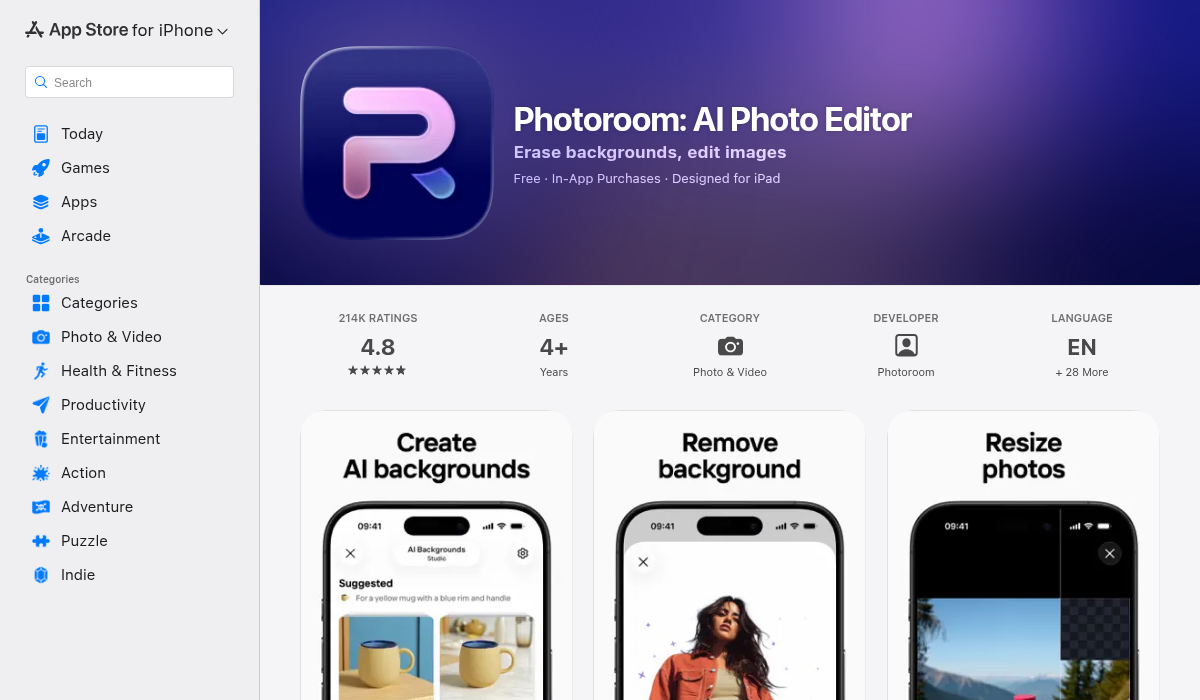
PhotoRoom has been a Reddit favorite for years, and it's earned that reputation. The web tool at photoroom.com handles most images cleanly, and the mobile app adds batch processing for power users.
- ✅ High-resolution output on free tier (recently improved)
- ✅ Clean edge detection on most subjects
- ✅ Batch processing available
- ❌ Subscription required for some features
- ❌ Can struggle with complex hair/fur details
- ❌ Mobile app has a learning curve
PhotoRoom is solid for quick e-commerce photos and social media content. It's the go-to recommendation on r/EtsySellers for a reason.
2. Remove.bg
The original AI background remover that started the revolution. Remove.bg pioneered the one-click approach and still delivers consistent results — but the free tier limitations have frustrated users lately.
- ✅ Extremely fast processing
- ✅ Handles most subjects well
- ❌ Free version limited to low resolution
- ❌ Gets expensive for regular use
- ❌ Background removal only — no additional editing
"I used to use remove.bg but it does not seem to be free anymore :( and I can't seem to find a replacement"— r/photography
If you only need occasional background removal and don't mind the resolution limits, Remove.bg works. But for regular use, the credits add up fast.
3. AIPGEN — AI Photo Editor
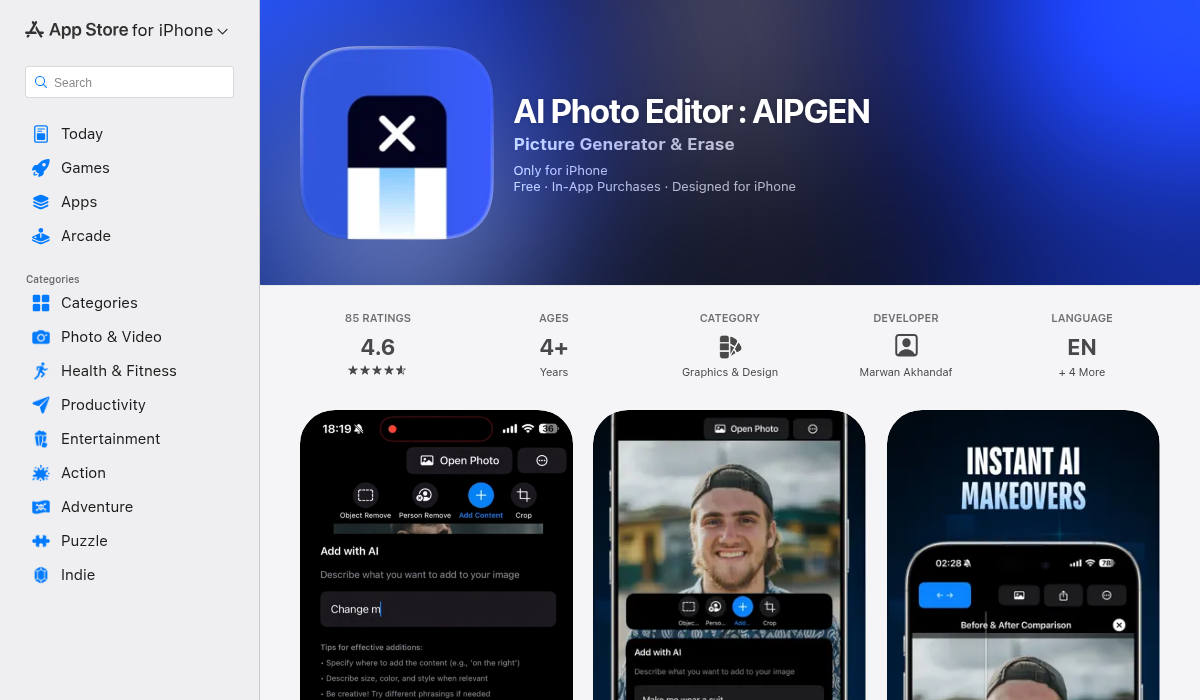
AIPGEN takes a different approach — instead of just removing backgrounds, it's a complete AI photo editing suite. You can remove backgrounds, but you can also remove objects, restore old photos, and even create group photos from individual portraits.
- ✅ Background removal plus object removal in one app
- ✅ 60+ AI templates for quick edits
- ✅ Before/after slider to compare results
- ✅ Replace backgrounds with AI-generated scenes
- ✅ Works on iOS and Android
- ✅ Photo restoration for old/damaged images
- ❌ Requires subscription for unlimited edits
What sets AIPGEN apart is versatility. After removing a background, you might want to remove an unwanted object, restore some faded details, or add a completely new AI-generated background. With single-purpose tools, that's three different apps. With AIPGEN, it's all in one workflow.
The 60+ AI templates also make it faster to get professional-looking results without manual tweaking. Select a template, apply it, done.
4. GIMP (Free, Manual Option)
If you want completely free with no limits, GIMP is the open-source alternative to Photoshop. It can do everything — but you'll need to learn it.
- ✅ Completely free, no limits
- ✅ Professional-grade results (with skill)
- ❌ Steep learning curve
- ❌ Time-consuming compared to AI tools
- ❌ No mobile app
"It's basically free Photoshop, I love GIMP. Select the wand tool and CTRL+Click all the solid colour sections you want to remove."— r/EtsySellers
GIMP is great if you enjoy the process and want maximum control. But for most people, AI tools deliver 90% of the quality in 1% of the time.
5. Apple Photos (Built-in on iPhone)
If you have an iPhone running iOS 16 or later, you might already have background removal built in. Long-press on a subject in the Photos app, and it'll automatically cut it out. No app download needed.
- ✅ Free, already on your phone
- ✅ Works surprisingly well on clear subjects
- ❌ Limited to copy/paste — no background replacement
- ❌ Hit or miss on complex images
- ❌ No editing features beyond the cutout
Apple's built-in feature is handy for quick cutouts to paste into Messages or Notes. For anything more polished, you'll want a dedicated tool.
Pro Tips for Better Background Removal
- Start with good lighting — AI works best when there's clear contrast between your subject and background. Even lighting without harsh shadows helps.
- Avoid busy backgrounds — A cluttered background makes detection harder. If you can, shoot against a simple backdrop first.
- Check the edges at 100% — Always zoom in to inspect hair, edges, and fine details. Most tools have a refine option if you spot issues.
- Save as PNG — PNG preserves transparency. JPEG backgrounds turn white, ruining your cutout.
- Use the right tool for the job — Quick social media post? Any AI tool works. Product photo for your store? Spend extra time on edge quality.
When to Use Each Tool
Here's our quick recommendation guide:
- Quick cutout for Messages/Notes: Apple Photos built-in (free, instant)
- E-commerce product photos: PhotoRoom (good free tier, batch processing)
- One-off background removal: Remove.bg (fast, but watch resolution limits)
- Multiple editing needs (remove + replace + restore): AIPGEN (all-in-one, 60+ templates)
- Professional work with full control: GIMP (free, but time investment)
The Bottom Line
Background removal in 2026 is essentially a solved problem. AI handles 95% of cases better than most humans could in Photoshop — and in a fraction of the time. The choice now is about what else you need.
If you just need backgrounds removed and nothing else, Remove.bg or PhotoRoom will do the job. If you want more flexibility — removing objects, restoring old photos, adding AI backgrounds, using templates — an all-in-one tool like AIPGEN makes more sense than juggling multiple apps.
Either way, you definitely don't need Photoshop anymore. Save that $275/year for something else.