
How to Remove People from Travel Photos on iPhone (2026 Guide)
You've finally made it to the Eiffel Tower — only to find 500 tourists photobombing every shot.
We've all been there. That perfect travel photo ruined by random strangers walking through the frame. Whether it's the crowded steps of the Colosseum, a busy beach in Bali, or Times Square at any hour, other people have a way of turning dream shots into frustrating near-misses.
The good news? Your iPhone can now remove unwanted people from photos in seconds — no Photoshop skills required. We tested every major option in 2026 to find what actually works.
Why Travel Photos Keep Getting Ruined
Some destinations are physically impossible to photograph without crowds. The Trevi Fountain sees 10,000+ visitors daily. The Mona Lisa has a permanent mob in front of it. Even "off the beaten path" spots get discovered the moment they hit Instagram.
Traditional solutions don't cut it anymore. Waking up at 5 AM? Crowds beat you there. Waiting for people to move? You'll be waiting all day. Taking 50 shots hoping one is clean? You're burning vacation time editing instead of enjoying.
"Spent 20 minutes at the Trevi Fountain trying to get a clean shot. Never happened. Just accepted I'd need to edit people out later."— Travel photographer on social media
Modern AI solves this problem in seconds. Point at the people you want gone, and the app intelligently fills in the background like they were never there.
How AI Photo Editing Actually Works
These apps use generative AI to analyze what's behind the person you're removing. They don't just blur or smudge — they actually reconstruct the missing background based on surrounding pixels and AI training data.
The results in 2026 are remarkably good. Complex patterns like brick walls, fabric textures, and even foliage get reconstructed naturally. Where early tools left obvious smearing or clone-stamp artifacts, modern AI produces seamless results.
Best Apps for Removing People from iPhone Photos (2026)
We tested the most popular options to see which actually delivers. Here's what we found.
1. TouchRetouch
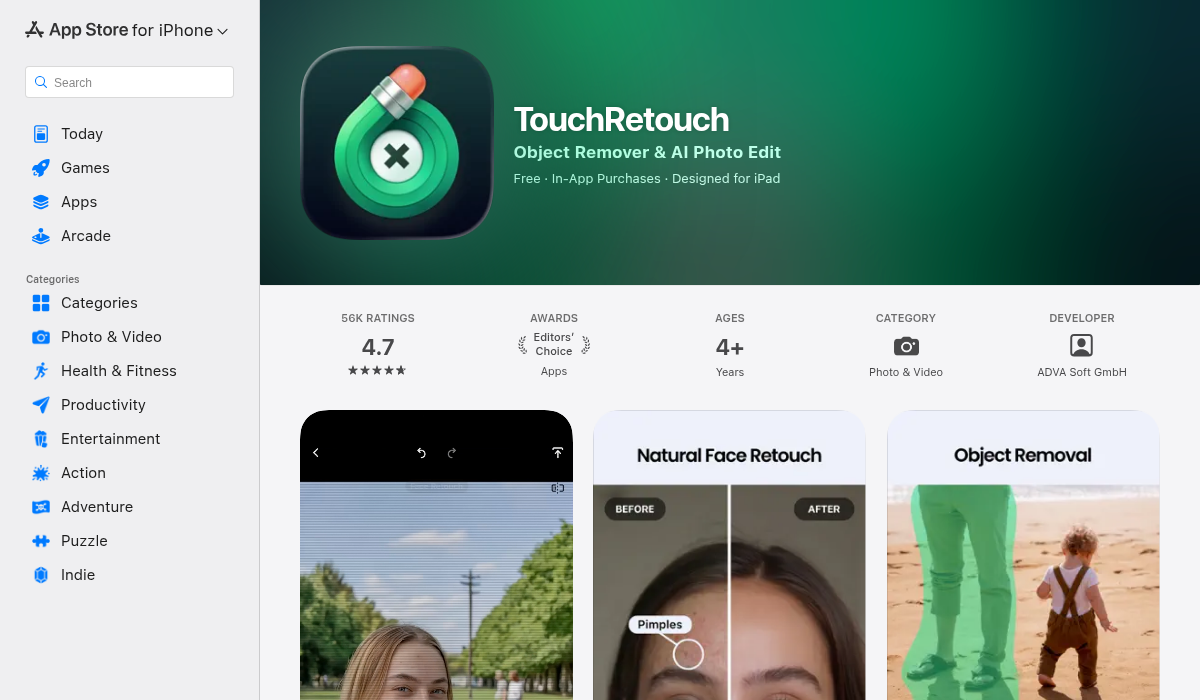
TouchRetouch has been around for years and built its reputation on object removal. The interface is straightforward — brush over what you want gone, tap go, and the app removes it.
- ✅ Simple one-tap removal
- ✅ Quick clone stamp for small objects
- ✅ Line removal tool for wires/cables
- ❌ Struggles with large areas or complex backgrounds
- ❌ Interface feels dated compared to newer apps
- ❌ No AI templates or restoration features
TouchRetouch works fine for removing small distractions like a photobomber in the corner. But when you need to erase multiple people or handle tricky backgrounds, it shows its age.
2. Snapseed (Free)
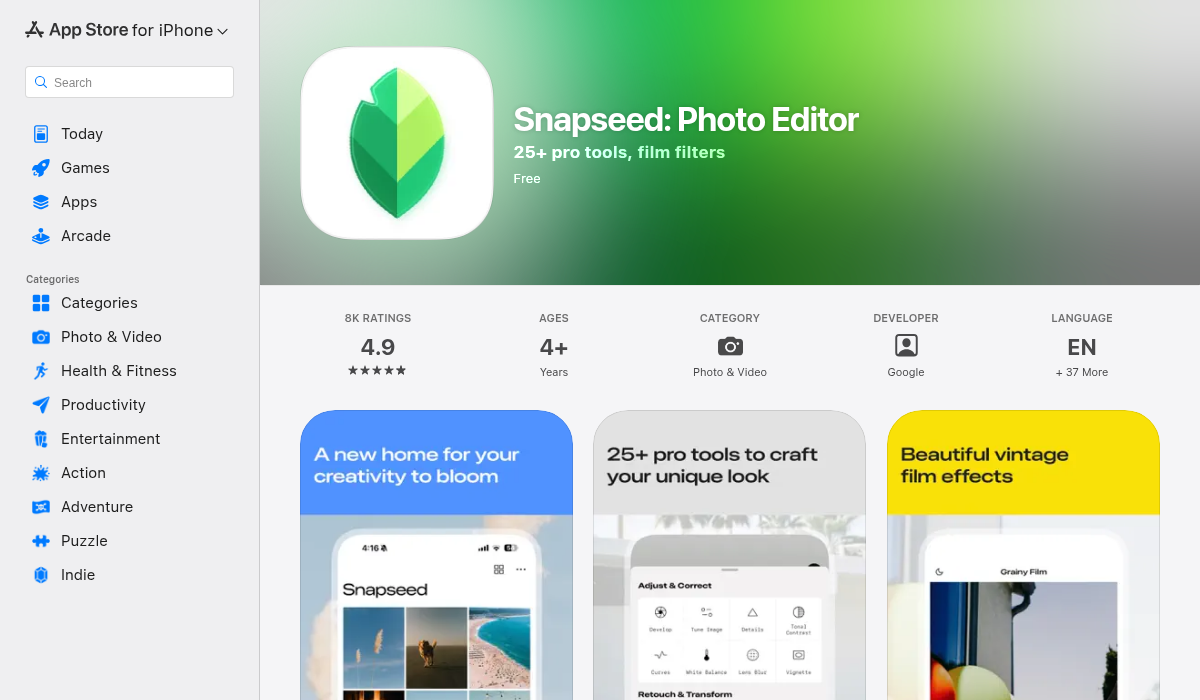
Google's Snapseed is a powerful free editor, but its healing tool isn't really designed for removing people. It works best for blemishes and small objects.
- ✅ Completely free with no ads
- ✅ Excellent color and exposure tools
- ✅ Professional-grade overall editing
- ❌ Healing brush struggles with people-sized removals
- ❌ No AI-powered features
- ❌ Steep learning curve for beginners
If you're already editing in Snapseed, you can try the healing brush for small fixes. But for serious people removal, you'll want a dedicated tool.
3. AIPGEN — AI Photo Editor
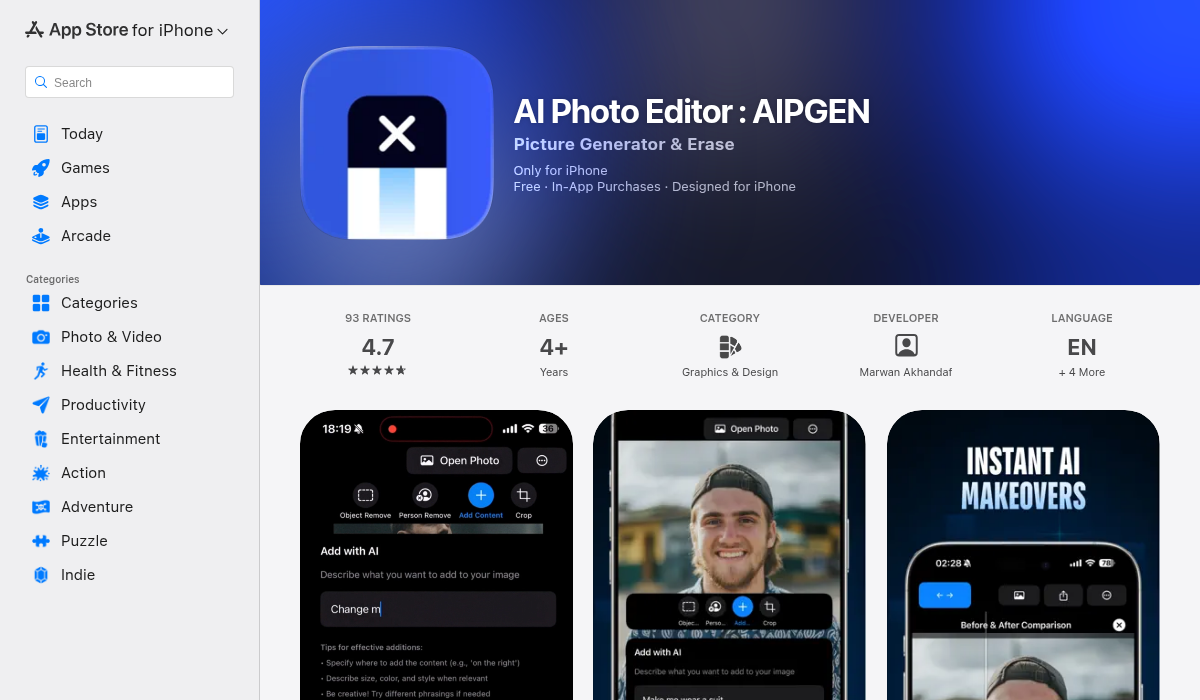
AIPGEN is built specifically for AI-powered editing, and it shows. The person removal tool uses the latest generative AI to reconstruct backgrounds with impressive accuracy — even on complex scenes.
- ✅ AI-powered person and object removal
- ✅ Handles complex backgrounds (brick, foliage, crowds)
- ✅ 60+ AI templates for quick edits
- ✅ Before/after slider to preview changes
- ✅ Photo restoration for old travel photos
- ✅ Group photo creator — combine individual shots
- ✅ Available on iOS and Android
- ❌ Premium subscription for unlimited edits
What sets AIPGEN apart is the all-in-one approach. Beyond removing people, you can restore old travel photos, use AI templates for quick enhancements, and even create group shots from individual portraits. The before/after slider makes it easy to see exactly what changed.
The free trial gives you one AI edit to test it out. After that, premium unlocks unlimited use.
4. iOS Photos (Clean Up Tool)
Apple added a "Clean Up" feature in iOS 18 that handles basic object removal. It's convenient since it's built into Photos, but the results are inconsistent compared to dedicated apps.
- ✅ Built into iOS — no download needed
- ✅ Free with no subscriptions
- ❌ Hit or miss on complex backgrounds
- ❌ Requires iPhone 15 Pro or newer
- ❌ Limited control over results
If you have a supported iPhone, try Clean Up first. For trickier removals, a dedicated app will give better results.
How to Remove People from Travel Photos: Step-by-Step
Here's the actual workflow we use for cleaning up travel shots:
- Open your photo in the editing app. Make sure you're working with the highest resolution version.
- Select the person removal or object eraser tool. In AIPGEN, this is the "Person Remove" option in the toolbar.
- Highlight the person you want to remove. Use your finger to brush over them. You don't need to be perfectly precise — the AI identifies the person.
- Tap to process. The AI analyzes the surrounding area and reconstructs the background.
- Review the result. Use the before/after slider to check the edit. If something looks off, you can undo and retry with different brush coverage.
- Remove additional people if needed. Repeat for each person in the frame.
- Save and export. Keep the original in case you want to try a different approach later.
The whole process takes under a minute per person on modern iPhones. Complex backgrounds might need a second pass, but most travel photos clean up on the first try.
Pro Tips for Better Results
After editing hundreds of travel photos, here's what we've learned:
1. Remove People From the Edges First
Start with people at the edges of the frame before tackling those in the center. Edge removals have less surrounding context to reconstruct, so they're easier for AI to nail. Build confidence before attempting the trickier center removals.
2. Work in Good Lighting
Photos taken in even lighting produce better removal results. Harsh shadows create edges that AI might recreate incorrectly. Golden hour shots with soft light are ideal.
3. Keep Your Original
Always save the original photo before editing. Sometimes you'll want to try a different cropping approach, or you'll realize one person you removed was actually adding to the composition.
4. Don't Over-Edit
If a photo requires removing 10+ people, consider whether a different shot might be better. Heavy editing can make backgrounds look unnaturally smooth, even with good AI.
5. Combine With Other Edits
After removing people, use the same app's other tools — color correction, cropping, straightening — to complete the edit. A cohesive workflow produces better final results than bouncing between multiple apps.
When to Skip the AI and Embrace the Crowds
Not every travel photo needs to be people-free. Sometimes crowds tell the story better than an empty landmark.
Photos of busy markets, street food vendors, festivals, and public gatherings often look strange without people. The Shibuya crossing in Tokyo is famous because of the crowds. A photo without them misses the point.
Consider what story you're telling. If the photo is about the monument itself, remove distractions. If it's about experiencing a bustling destination, keep the energy.
The Bottom Line
Removing people from travel photos is no longer a Photoshop skill. Modern AI apps handle it in seconds, directly on your iPhone.
For quick fixes, the built-in iOS Clean Up tool works if you have a newer iPhone. For more control and better results on complex backgrounds, AIPGEN handles everything from person removal to photo restoration in one app.
The best approach? Shoot first, edit later. Spend your vacation enjoying the moment, knowing any photobombers can be erased before you post.