
How to Remove Text from Images with AI
You've got the perfect photo — except for that watermark, timestamp, or distracting text overlay that ruins it. Here's exactly how to remove text from images using AI tools in 2026, without any Photoshop skills required.
Whether it's a date stamp on an old family photo, text overlays on a screenshot, or branding you need to clean up, AI has made text removal remarkably simple. We tested the most-discussed tools across Reddit's photography communities to find what actually works.
Why AI Text Removal Has Changed the Game
Just a few years ago, removing text from images required either expensive software like Photoshop or painstaking manual work with the clone stamp tool. The results were often obvious — smudged areas, inconsistent textures, visible artifacts.
Modern AI approaches the problem differently. Instead of just smearing over text, these tools analyze the surrounding context and intelligently regenerate what should be underneath. The AI understands textures, patterns, and even perspective — filling in backgrounds, skin tones, or complex surfaces naturally.
"Just circle it using the lasso tool and use AI generator to remove text — should be cake. The AI fills in what was underneath surprisingly well."— Reddit user in r/PhotoshopTutorials
Common Scenarios Where You Need Text Removal
Before diving into tools, here are the most common situations where AI text removal helps:
- Watermark removal — Stock photo samples, preview images (ensure you have rights to use the image)
- Date stamps — Old digital camera photos with burned-in dates
- Screenshot cleanup — Removing UI elements or overlaid text from captures
- Social media repurposing — Removing platform-specific overlays
- Photo restoration — Cleaning old photos with writing or stamps
- Product photography — Removing price tags or brand labels
Best AI Tools for Removing Text from Images
1. TouchRetouch — Dedicated Object Removal
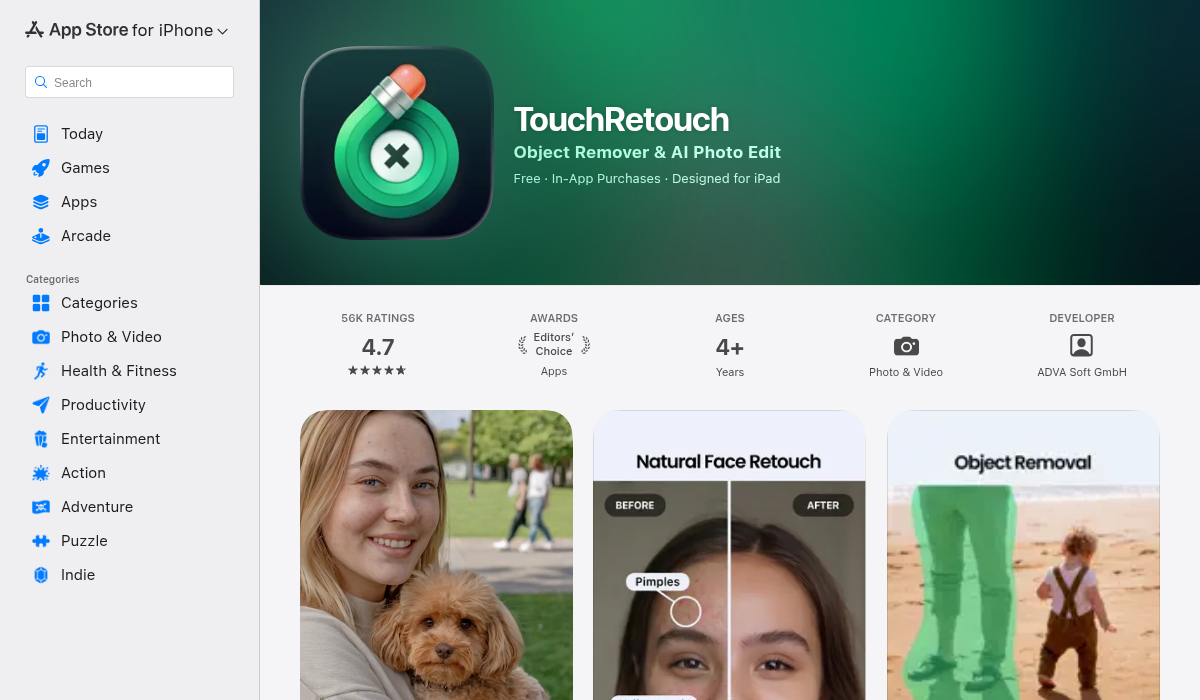
TouchRetouch has been a go-to app for object removal since before the AI revolution, and it's adapted well. The app focuses entirely on removal tasks, making it straightforward to use.
For text removal specifically, you can either brush over the text manually or use the lasso tool to select larger blocks. The AI then analyzes the surrounding area and fills in appropriately.
- ✅ Dedicated removal tool (does one thing well)
- ✅ Quick brush and lasso selection
- ✅ One-time purchase (no subscription)
- ❌ Limited to removal only — no other editing features
- ❌ Results can struggle with complex backgrounds
- ❌ Older UI design
2. Adobe Photoshop Generative Fill — Professional Results
Adobe's Generative Fill in Photoshop represents the cutting edge of AI removal. Select the text with any selection tool, then let Generative Fill regenerate what should be there. The results are often indistinguishable from the original.
Reddit users in r/photoshop frequently recommend this for complex removals where the text overlaps faces, detailed textures, or patterned backgrounds.
- ✅ Best-in-class quality for complex removals
- ✅ Can regenerate faces, textures, patterns
- ✅ Multiple variations to choose from
- ❌ Requires Photoshop subscription
- ❌ Desktop only
- ❌ Overkill for simple removals
3. AIPGEN — All-in-One Mobile Solution
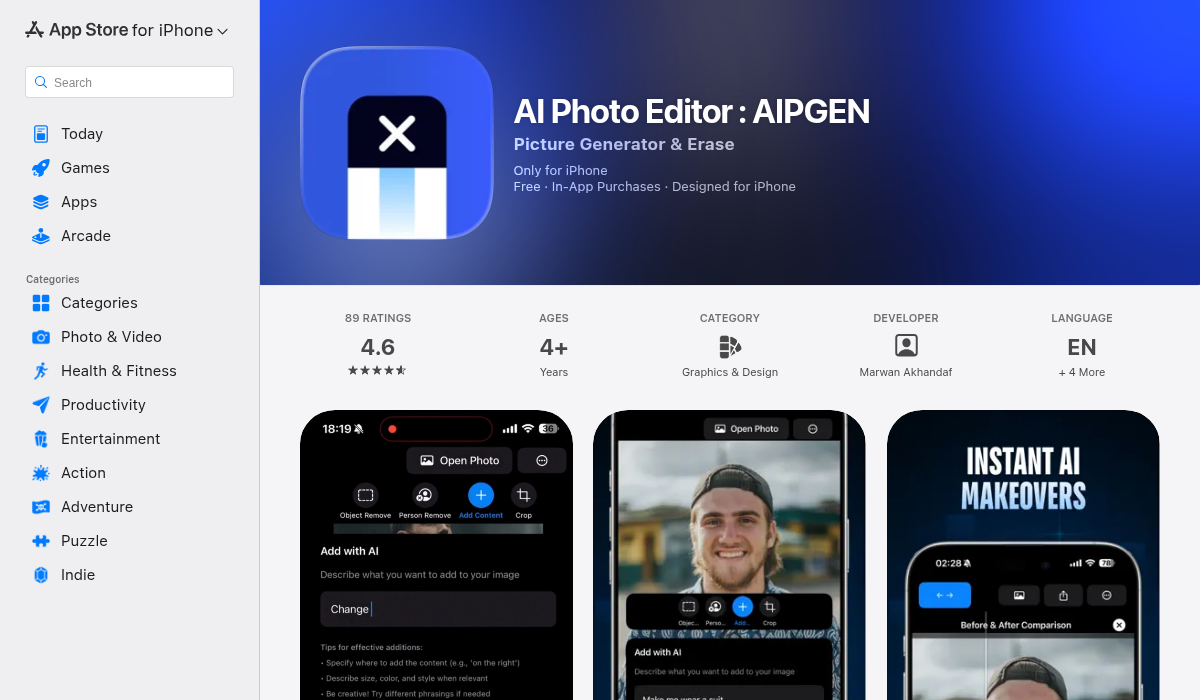
AIPGEN's AI object removal tool works excellently for text removal while offering a complete editing suite. The workflow is simple: highlight the text you want removed, and the AI fills in the background seamlessly.
What sets AIPGEN apart is that text removal is just one feature in a comprehensive toolkit. After removing unwanted text, you can enhance the photo, apply filters, or add your own text — all without switching apps.
The before/after slider is particularly useful for text removal, letting you verify the AI's work by comparing directly against the original. If something looks off, you can redo just that area.
- ✅ Highlight and remove workflow — no learning curve
- ✅ Full editing suite beyond just removal
- ✅ Before/after comparison slider
- ✅ Works on complex backgrounds
- ✅ Cross-platform (iOS and Android)
- ❌ Requires in-app purchase for premium features
"I use AI object remover to remove text, people, and objects from my photos. You just select what to remove. A lot of new phones have these features too, but most of them aren't as good."— Reddit user in r/StableDiffusion
4. Snapseed — Free Google Option
Snapseed's Healing tool provides basic text removal for free. While not as sophisticated as dedicated AI tools, it handles simple text on clean backgrounds adequately.
- ✅ Completely free
- ✅ Simple healing brush
- ✅ Full editing suite included
- ❌ Not truly AI-powered — more traditional healing
- ❌ Struggles with complex backgrounds
- ❌ Manual brush requires precision
5. Cleanup.pictures — Web-Based Free Option
For quick, one-off text removals without installing anything, Cleanup.pictures offers a browser-based solution. Upload your image, brush over the text, and download the result.
- ✅ No installation required
- ✅ Free tier available
- ✅ Simple brush interface
- ❌ Lower resolution on free tier
- ❌ Web-only (no mobile app)
- ❌ Quality varies significantly
Step-by-Step: How to Remove Text from Images
Regardless of which tool you choose, the process follows a similar pattern:
Step 1: Choose Your Selection Method
Most tools offer either a brush (for precise selection) or a lasso (for selecting larger areas). For text removal:
- Use brush for small text or when you need precision around edges
- Use lasso for large text blocks or watermarks
Step 2: Select the Text Carefully
Cover all the text but minimize selecting the background. The less the AI has to regenerate, the better the results. Include a tiny margin around the text to ensure clean edges.
Step 3: Let the AI Process
Processing time varies from instant to a few seconds depending on the complexity. More sophisticated tools may offer multiple variations to choose from.
Step 4: Check the Results at 100%
Always zoom in to full resolution and check the removed area. Look for:
- Texture inconsistencies
- Color mismatches
- Repeating patterns (AI sometimes tiles textures)
- Soft or blurry areas
Step 5: Refine If Needed
Most tools let you undo and retry, or work on smaller sections. If one pass doesn't look right, try selecting a smaller area and processing in stages.
Tips for Better Text Removal Results
- Start with the highest resolution available — More pixels give the AI more context to work with.
- Process in stages — For large text blocks, remove in sections rather than all at once.
- Match the tool to the background — Complex textures (fabric, grass, skin) need better AI than solid colors.
- Consider the text's shadow — Don't forget to remove drop shadows, which can be subtle but visible.
- Work on a copy — Always keep your original file intact.
When AI Text Removal Struggles
AI isn't magic, and some scenarios remain challenging:
- Text over faces — Regenerating facial features accurately is still hard
- Very large text blocks — Less surrounding context means worse results
- Patterned backgrounds — Complex repeating patterns can confuse AI
- Transparent/gradient text — Partial transparency is harder to detect and remove
For these difficult cases, professional tools like Photoshop's Generative Fill or manual editing may still be necessary.
Text Removal on Mobile vs Desktop
The gap between mobile and desktop text removal has narrowed significantly. Modern phones have enough processing power to run sophisticated AI models locally.
Mobile apps like AIPGEN now produce results comparable to desktop tools for most common text removal scenarios. The convenience of removing text directly on your phone — without transferring files — makes mobile the practical choice for casual users.
Desktop tools still excel for:
- Batch processing large numbers of images
- Professional work requiring maximum quality
- Complex removals needing multiple passes
Legal and Ethical Considerations
Before removing text or watermarks from any image, consider:
- Copyright — Removing watermarks from stock photos you haven't licensed is copyright infringement
- Attribution — Some images require visible credit to the creator
- Authenticity — Removing text from documents or historical photos can be problematic
Use these tools responsibly for your own photos, licensed content, or images where you have explicit permission.
The Bottom Line
AI has made text removal accessible to everyone. What once required Photoshop expertise and significant time can now be done in seconds on your phone.
For most users, a mobile all-in-one solution like AIPGEN handles text removal while providing additional editing capabilities. If you're only removing text occasionally and want something free, Cleanup.pictures works for simple cases. For professional work with complex backgrounds, Photoshop's Generative Fill remains the gold standard.
The key is matching the tool to your needs — simple date stamps don't need professional software, while text over detailed textures might. Start with the easier tools and only move to more complex options if results aren't satisfactory.
If you're looking for a versatile mobile option that handles text removal along with other common photo editing tasks, AIPGEN offers a free trial edit to test its capabilities.