
Object Removal AI: How It Actually Works
You've probably seen those viral videos where someone swipes over a tourist in a photo and—poof—they vanish like they were never there. It feels like magic. But behind every seamless disappearance is a sophisticated AI technique called inpainting. Let's break down exactly how object removal AI works in 2026, why some apps do it better than others, and what to look for when choosing your editor.
Whether you're trying to remove an ex from old photos, erase photobombers from your vacation shots, or clean up distracting elements in product photography, understanding the technology helps you get better results. And trust us—not all object removal tools are created equal.
What is AI Inpainting?
At its core, inpainting is the process of filling in missing or unwanted parts of an image with new content that looks natural. Traditional inpainting—like Photoshop's Content-Aware Fill—worked by blending surrounding pixels to estimate what should be there. It was clever, but limited.
AI inpainting is different. Instead of just copying nearby pixels, modern AI models understand what they're looking at. They recognize that a sky should have clouds with proper gradients, that grass has texture and depth, that a building continues behind the person you're removing.
"Before AI, object removal in apps was done using traditional inpainting techniques, like Photoshop's Content-Aware Fill, which blended surrounding pixels to estimate missing areas. Open-source models like BrushNet and Big LaMa can be hit-or-miss because they rely heavily on the dataset they were trained on, making results inconsistent."— Reddit user in r/StableDiffusion
How Modern AI Object Removal Works
The magic happens through diffusion models—the same technology powering image generators like Stable Diffusion and DALL-E. Here's the simplified process:
- Selection — You mark the area you want to remove (usually by drawing over it or using an AI-powered selection tool)
- Context Analysis — The AI analyzes the surrounding image to understand what should replace the removed area
- Noise Generation — The masked area is filled with latent noise—essentially random data that the AI will reshape
- Iterative Refinement — Through multiple passes, the AI gradually transforms that noise into coherent content that matches the surrounding scene
- Blending — The new content is seamlessly merged with the original image edges
The key insight is that the AI doesn't just "guess"—it's been trained on millions of images and understands visual concepts like perspective, lighting, shadows, and textures.
Why Results Vary So Much Between Apps
If AI object removal is so sophisticated, why do some apps produce perfect results while others leave obvious artifacts? A few factors:
- Model Quality — Larger, better-trained models produce more realistic fills
- Context Window — How much of the surrounding image the AI considers when filling
- Iteration Count — More refinement steps typically mean better results (but slower processing)
- Post-Processing — Edge blending and color matching after the initial fill
Budget apps often use smaller, faster models that can't handle complex backgrounds. Premium apps invest in the best models and multiple refinement passes.
Best Object Removal Apps Compared
1. TouchRetouch

TouchRetouch has been around for years and built its reputation on simplicity. You brush over an object, tap "Go," and it disappears. It's fast and intuitive.
- ✅ Simple, focused interface
- ✅ Good for small objects (wires, blemishes)
- ❌ Struggles with complex backgrounds
- ❌ No AI templates or additional editing tools
- ❌ UI feels dated compared to modern alternatives
TouchRetouch works well for quick fixes—removing a wire from a landscape or a blemish from a portrait. But for larger objects or complex scenes, the results can be hit-or-miss.
2. AIPGEN — AI Photo Editor
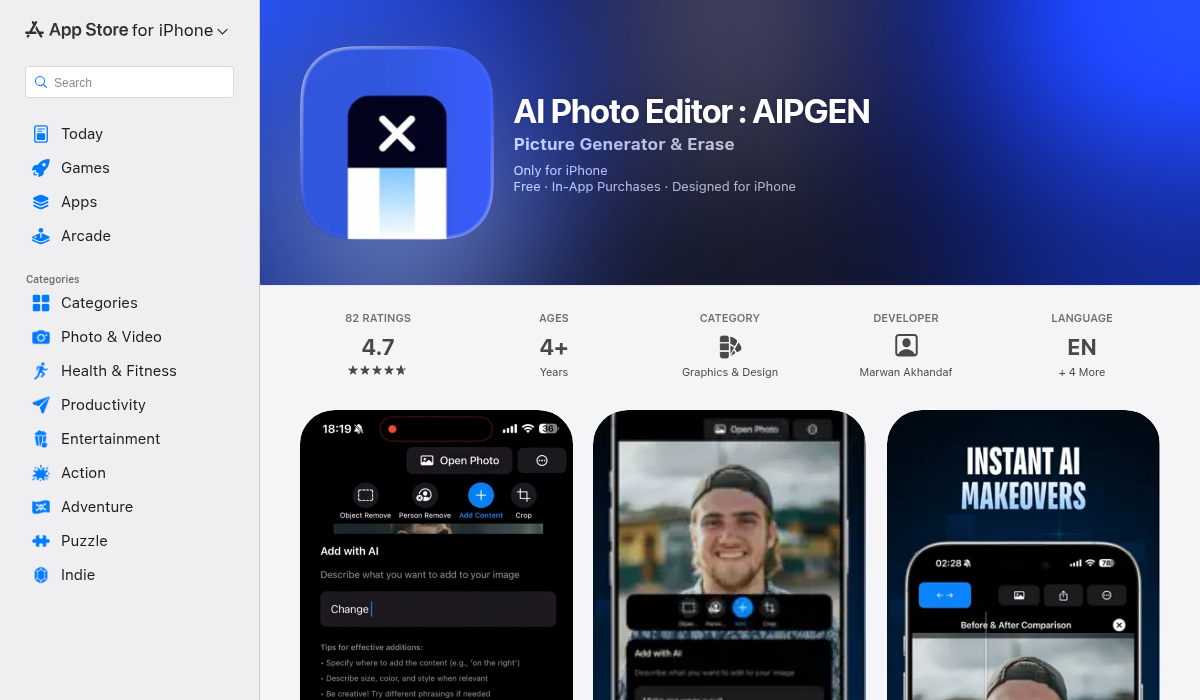
AIPGEN takes a more comprehensive approach. Object removal is just one feature in a full AI editing suite that includes photo restoration, creative composition, and even group photo creation from individual portraits.
- ✅ Powerful object and person removal with minimal artifacts
- ✅ 60+ AI templates for quick edits
- ✅ Photo restoration for old/damaged photos
- ✅ Group photo creator—combine individual shots into realistic group photos
- ✅ Before/after slider to compare edits
- ✅ Modern, intuitive interface
- ✅ Works on both iOS and Android
What sets AIPGEN apart is the combination of removal quality and additional features. The AI handles complex backgrounds surprisingly well—removing people from busy street scenes or objects from textured surfaces without obvious smearing.
3. Snapseed
Google's Snapseed includes a healing tool for object removal, but it's not AI-powered in the modern sense. It uses older techniques that struggle with anything beyond simple fixes.
- ✅ Free
- ✅ Great for traditional photo editing
- ❌ Object removal is basic
- ❌ No AI features
Pro Tips for Better Object Removal
Regardless of which app you use, these techniques will improve your results:
- Start Small — Remove objects in pieces rather than selecting a massive area at once. Multiple smaller passes often produce cleaner results than one large selection.
- Give Context — Some apps let you expand your selection slightly beyond the object. Including a bit of the surrounding area helps the AI understand what should replace it.
- Watch Your Edges — The most obvious artifacts appear at the edges where new content meets old. If something looks off, try re-running the removal with a slightly different selection.
- Consider the Background — AI works best when there's clear context. Removing someone from a plain wall is easier than removing them from a complex pattern.
- Multiple Passes — Don't be afraid to run the removal multiple times. First pass might leave minor artifacts that a second pass cleans up perfectly.
"Works pretty good one-step, sometimes takes a few iterations and a final few-step 'background' inpaint."— Reddit user in r/StableDiffusion
Common Use Cases
Here's what people most commonly use AI object removal for:
- Removing photobombers — Clear strangers from your travel photos
- Cleaning product shots — Remove distracting background elements for e-commerce
- Erasing ex-partners — Keep the memory, lose the person
- Removing text and watermarks — Clean up screenshots or recover photos
- Eliminating distractions — Power lines, trash cans, signs that ruin the composition
The Bottom Line
AI object removal has come incredibly far. What used to require hours in Photoshop now takes seconds on your phone. But quality varies dramatically between apps.
For occasional quick fixes on simple backgrounds, most apps will do the job. For complex removals, challenging backgrounds, or professional-quality results, you'll want an app with a modern AI model and proper refinement passes.
If you want object removal plus a complete suite of AI editing tools—restoration, composition, templates, and more—AIPGEN is worth trying. The free trial gives you one complimentary AI edit to test the quality before committing.